Top up logoTop up logo
guide registrationCadastre-se agora para ganhar 15% de desconto como presente para novos membros!Acesse o cadastro >
Roblox (Gamepass Method)

Roblox (Gamepass Method)

Entrega instantâneaEntrega instantânea
🔥Convide amigos e ganhe 15%OFF

How to create my Game Pass link? Click  [ ?]  for the full guide.

Mais jogos que você pode gostar

Descrição

Delivery instructions

This is the delivery guideline for GAMEPASS PREORDER GIFTING, which is completed solely via direct link.


Information Required for Top-Up

✖️In-game gifting feature and all other delivery approaches are not supported and cannot be used.

👍The only available way to deliver the game pass is through sharing the dedicated game pass link.


Top-Up Important Notes

Please DISABLE REGIONAL PRICING setting on your product page

💰 Roblox will automatically deduct a 30% platform transaction tax from this deal. This tax expense will not be covered by us.

⌛ After the transaction, your Robux funds will enter pending status and require a 5-7 day holding period before they become available for withdrawal.

Refunds are available if no URL is provided or if the provided URL is invalid, broken, or returns an error.


🛠️ Required steps you need to complete:

① Create and publish your Game Pass on Roblox

② Share the direct link of this Game Pass to me


⚠ Important Notes:

⛔ By proceeding, you acknowledge and accept all associated risks.

I will not take responsibility for account bans, missing/lost Robux, or any hazards arising from RMT transactions.
Procedimentos de recarga

📌Please follow the steps below to complete your order:

Step 1 — Select & Pay
Choose your desired Robux amount and complete the payment.

Step 2 — Create a Game Pass
Create a Game Pass on your Roblox account and set its price according to your purchased amount. Please make sure the Game Pass is configured correctly before proceeding.

Step 3 — Send the Game Pass Link
Copy your Game Pass link and send it to us through the chat so we can process your order.

Step 4 — Receive Your Robux
Once the purchase is completed, your Robux will appear as Pending Robux in your Roblox transactions. The pending period usually takes 1–5 days, depending on Roblox's processing time.


⚠️ Important Notes

  • Roblox Fee: The 30% Roblox marketplace fee is not included in this listing. Please take this fee into account when setting your Game Pass price.

  • No In-Game Gifting: We do not offer direct in-game gifting. Orders are processed exclusively through the Game Pass link provided by the buyer.

  • Account Risk: Although we use methods designed to minimize risk, trading Robux for real-world money or through unofficial transactions may violate Roblox's Terms of Use and could result in account restrictions. Please proceed at your own discretion.

  • Order Instructions: Please follow all instructions carefully. We cannot guarantee a refund if the required steps are not followed correctly.

By placing an order, you acknowledge and accept the above conditions.

How to Get My Game Pass Link 🔗

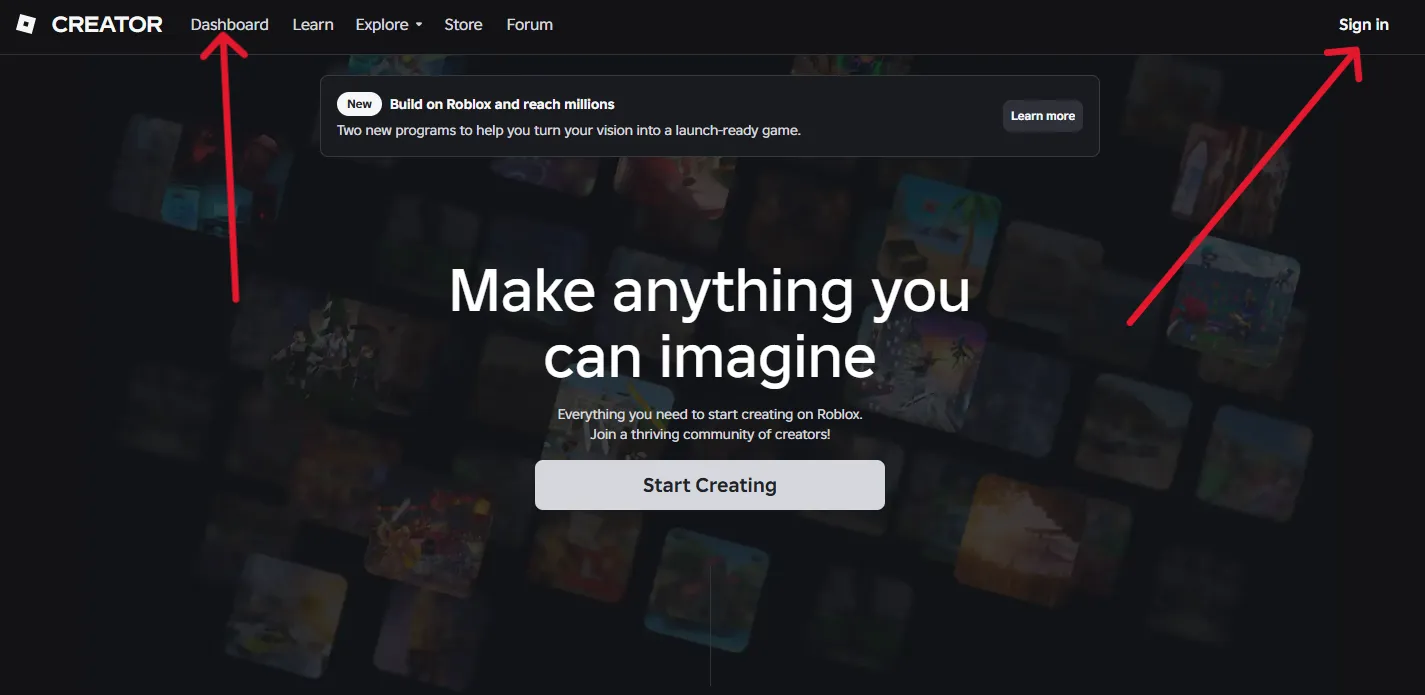
1.Click to visit the official Roblox Creator Hub.👉Roblox Creator Hub

2.Click [Log In] in the top-right corner to sign in to your Roblox account, then open the Creator [Dashboard].

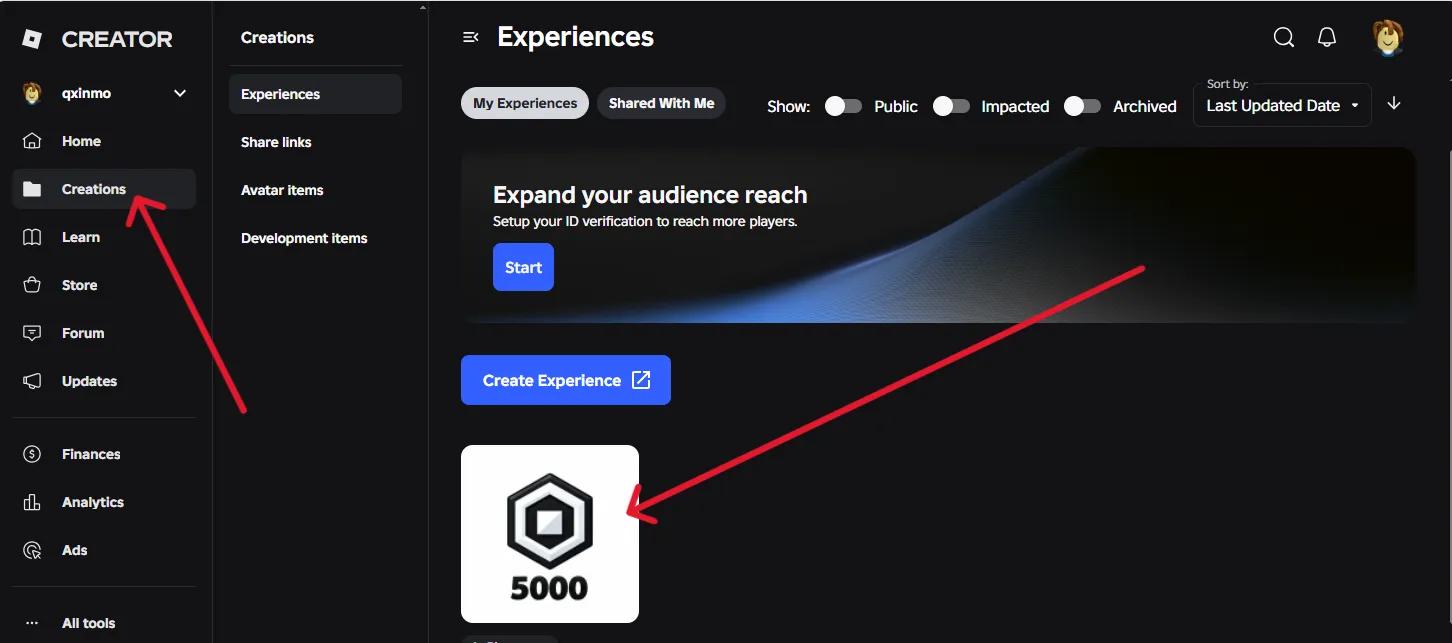
3.Find [Creations] in the left-hand navigation menu. Select any game that you own or have permission to manage, and that has already been published.

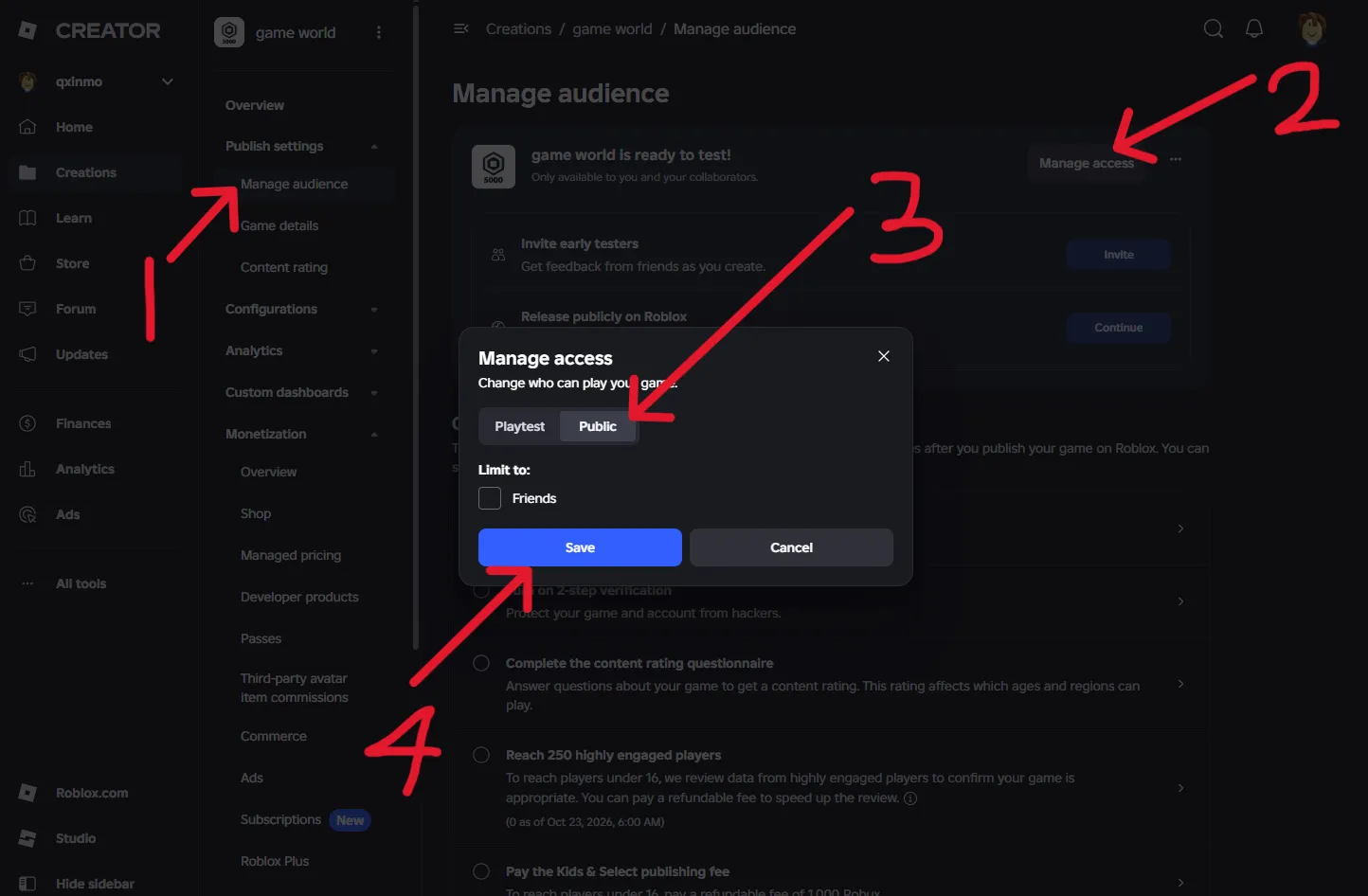
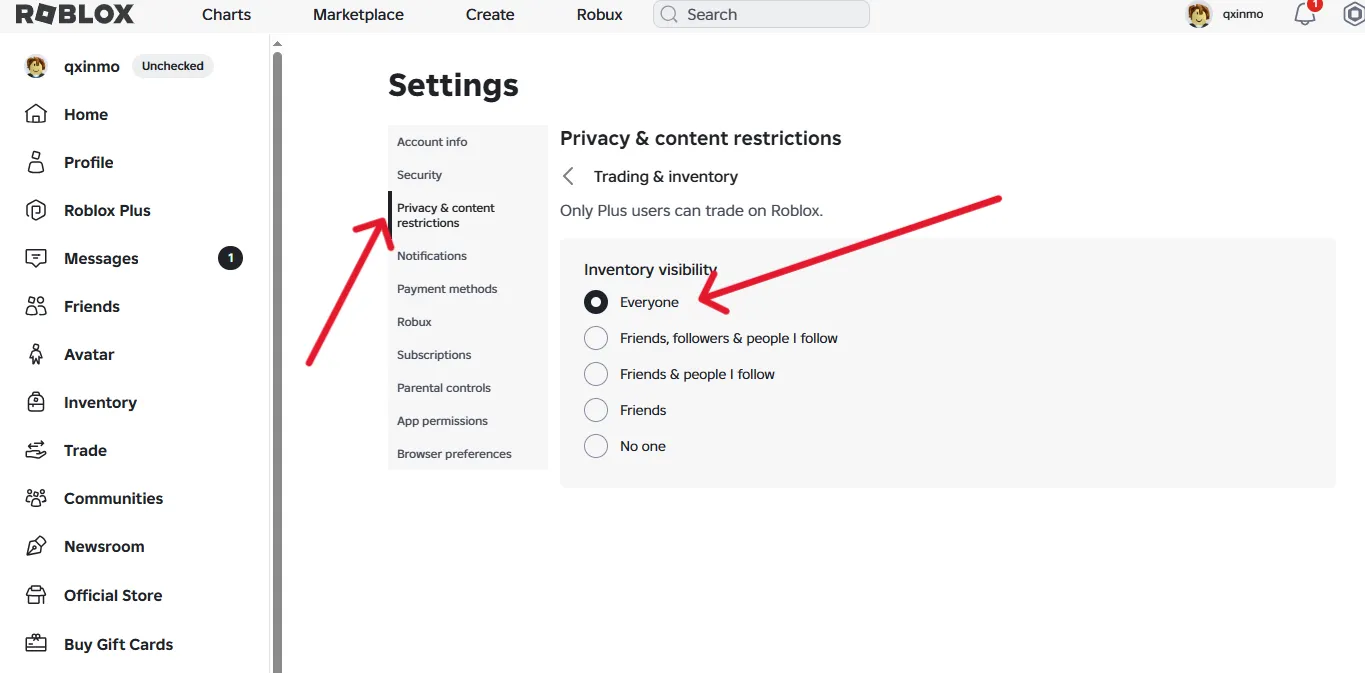
4.Make sure your game is set to Public. Under [Manange Audience], select [Manange Access] to ensure your game is publicly accessible. Also, make sure the required permissions are enabled in your Roblox account [settings],go to [Privacy & content restrictions],make sure the Trading & inventory visibility is Everyone .

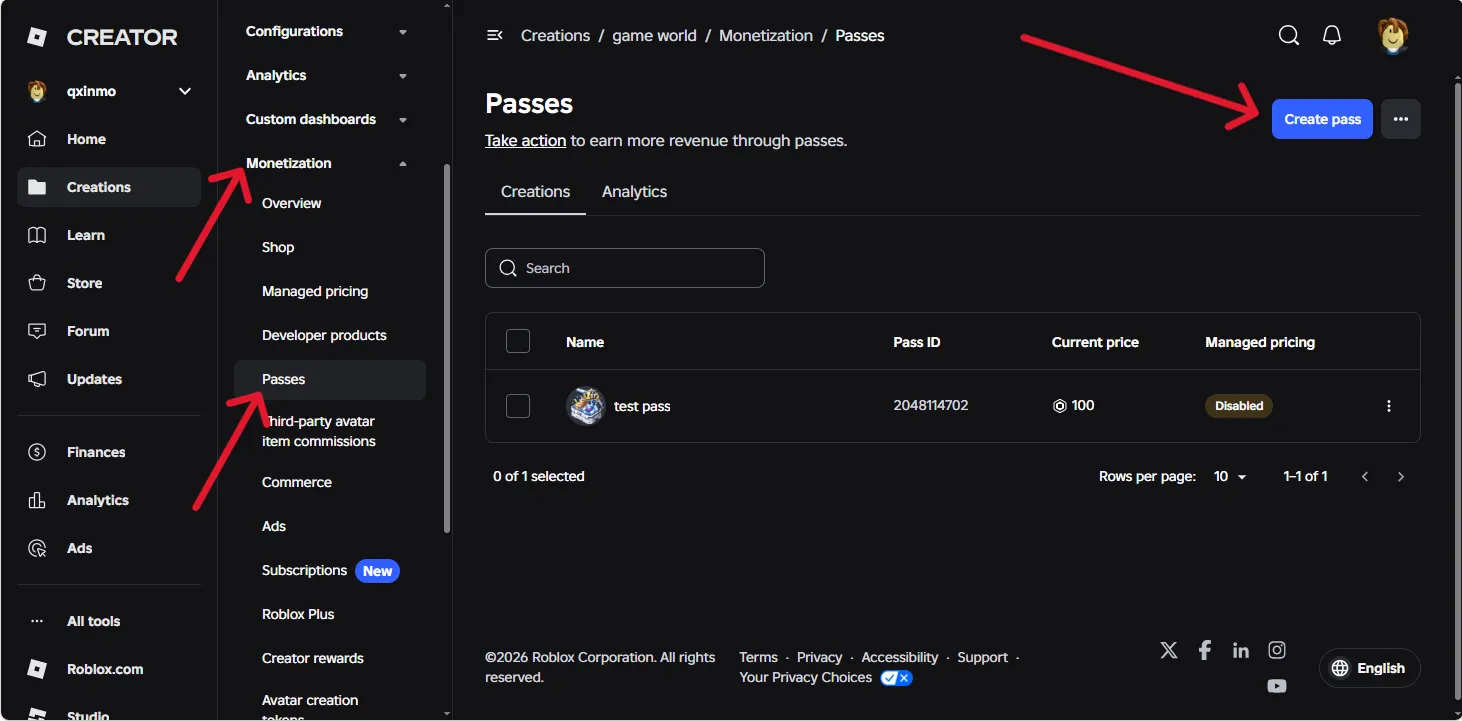
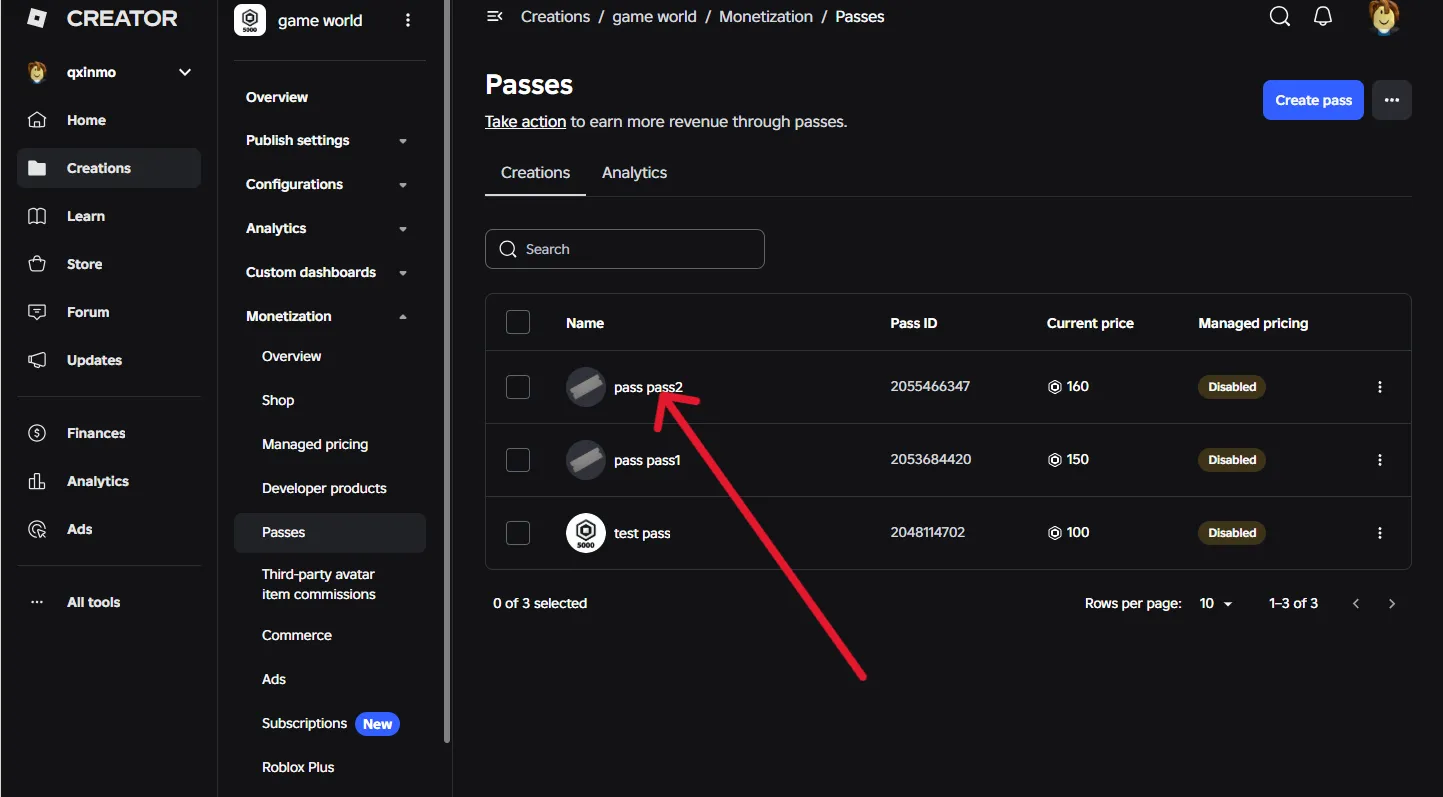
5.Next, select [Monetization], then click [Passes]. In the top-right corner, click [Create Pass] to create a Game Pass.

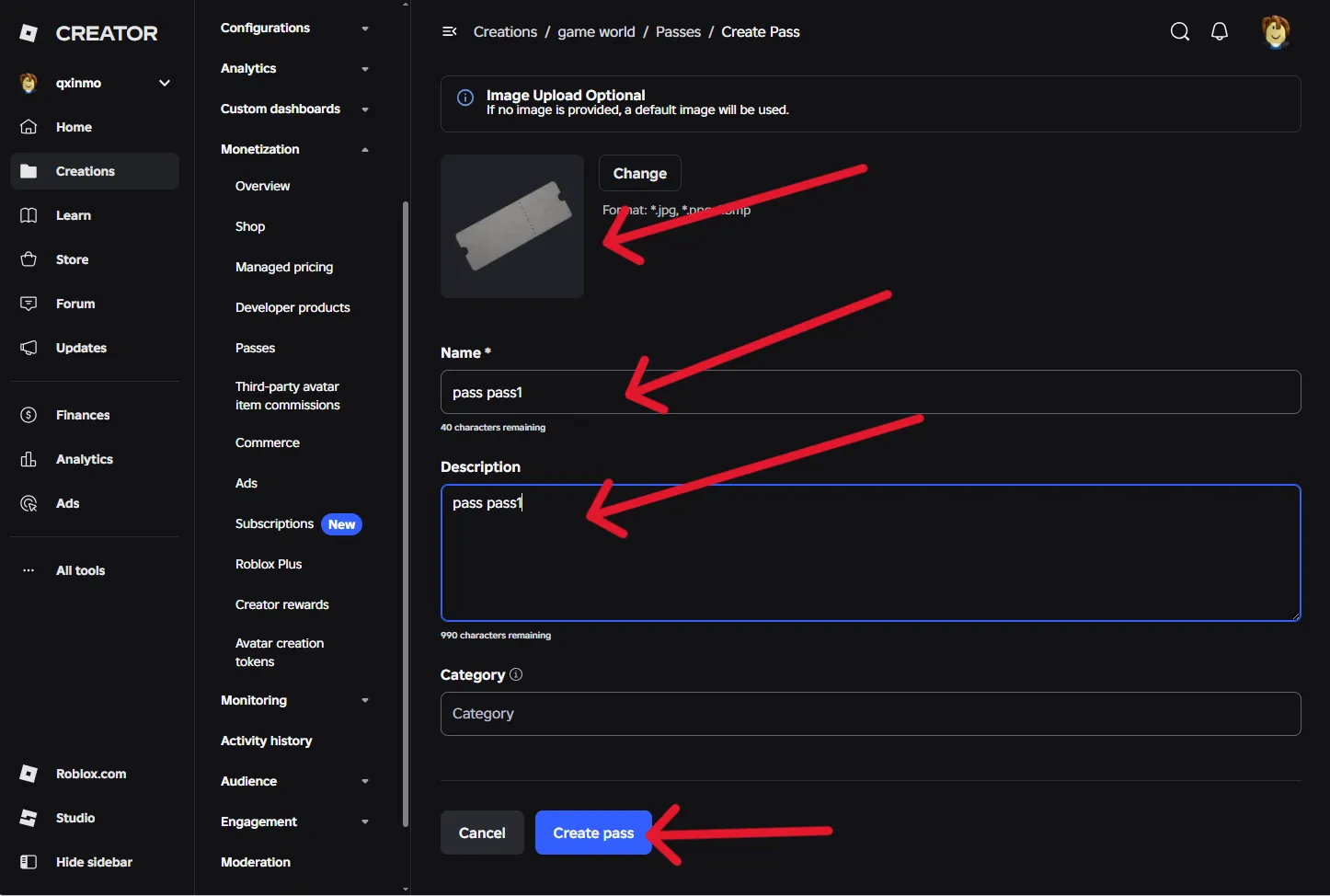
6.Fill in your Game Pass details. Once you've completed all the required fields, click [Create Pass].

7.Find the Game Pass you just created and click it to edit its settings.

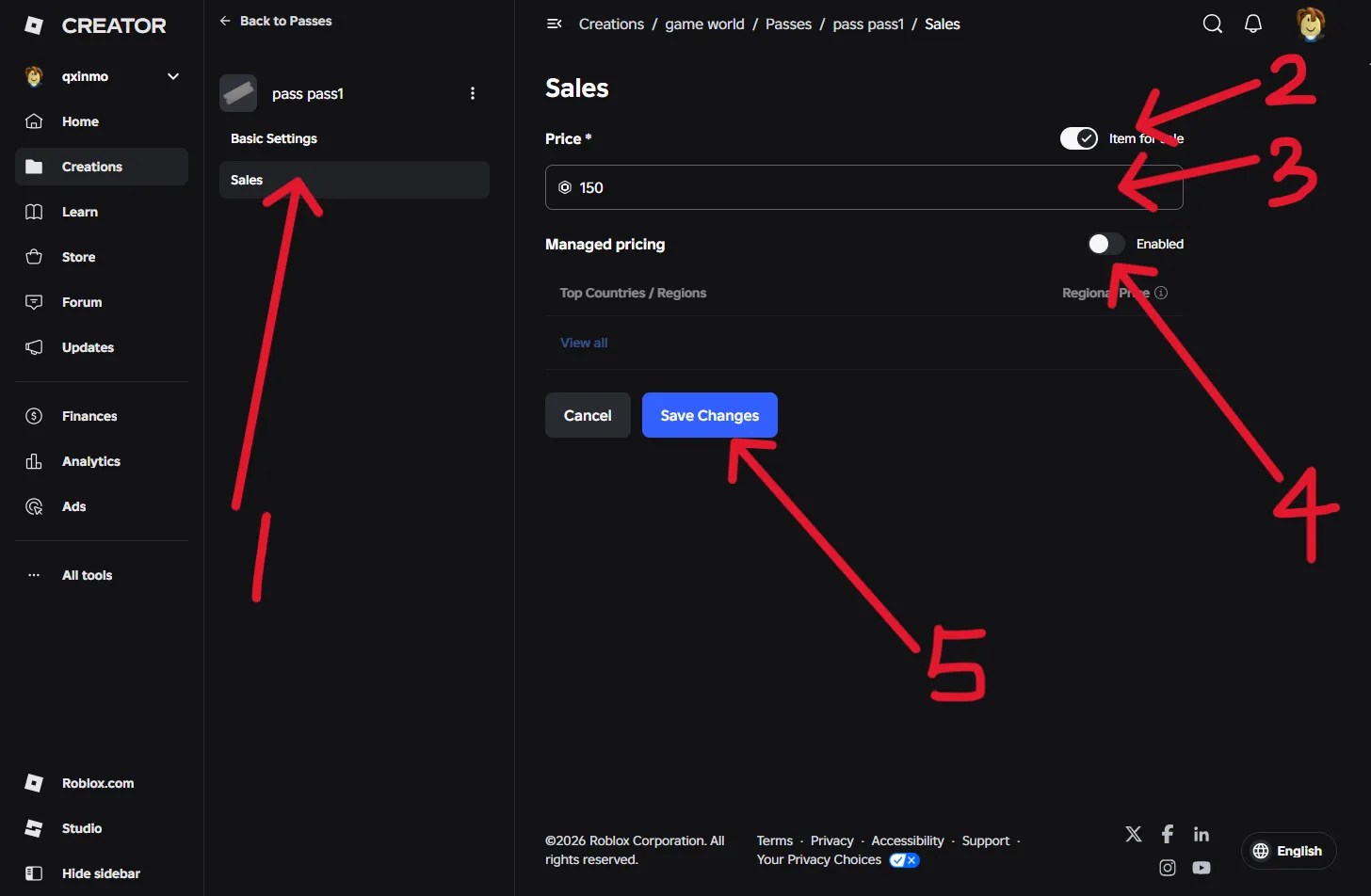
8.Click [Sales], enable [Item for Sale], and set your price. Make sure [Managed Pricing] is turned off. Finally, click [Save Changes].

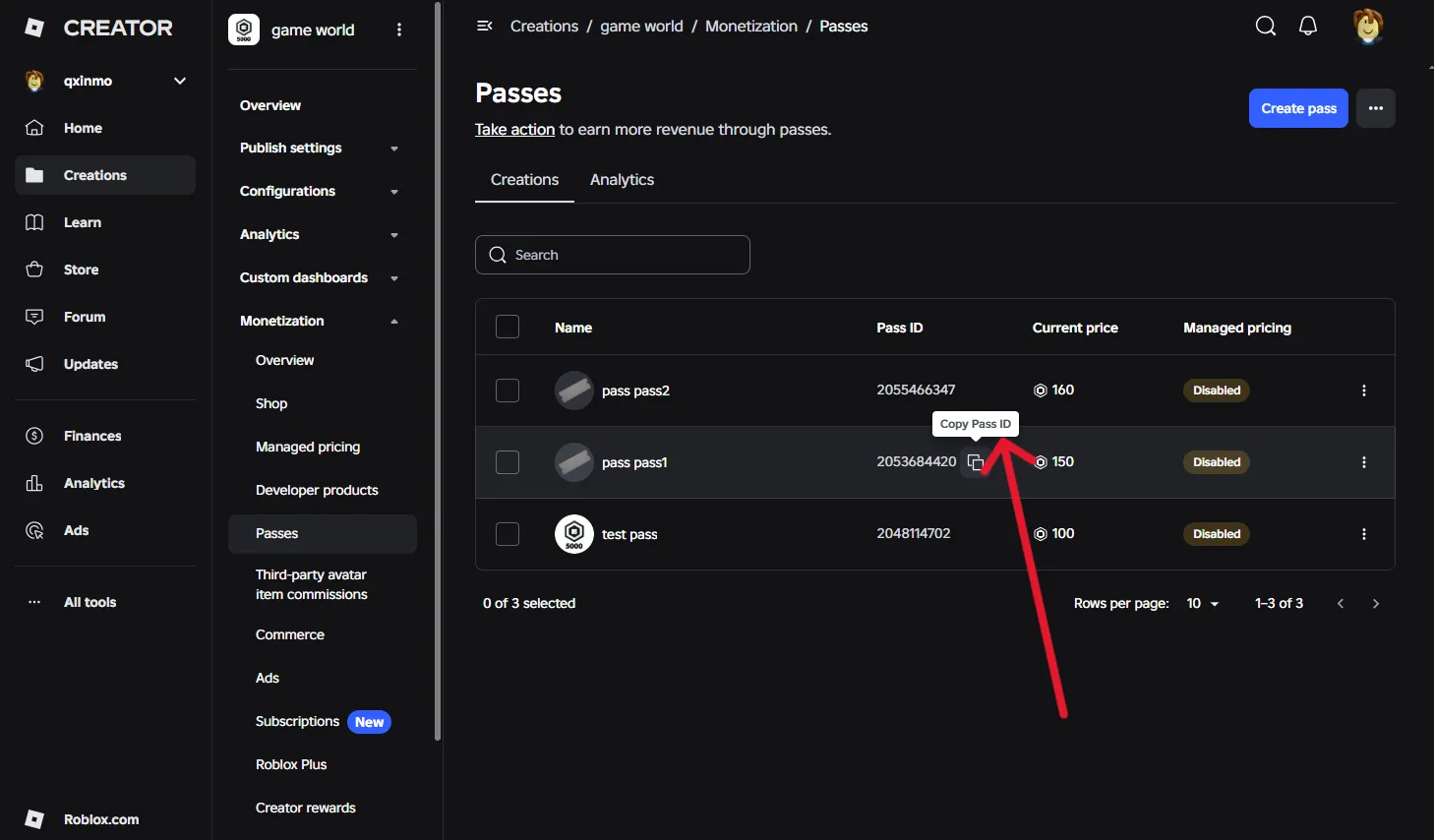
9.After updating the price, find your [Pass ID] and copy it. Paste the ID into the following URL:https://www.roblox.com/game-pass/[Your Pass ID]

Example: https://www.roblox.com/game-pass/2053684420

Open a new browser tab and enter the complete URL to check that your Game Pass link opens successfully.

10.Once you've confirmed that your Game Pass link opens successfully, you can visit LDShop and select the product or service you need! If you have any questions, please contact our customer support team. Thank you for your understanding!